1. Table of Contents
2. Introduction
This guide contains instructions and best practices for integrating Red Hat Process Automation Manager (RHPAM) with Blue Prism Intelligent RPA Platform, so that both products can work together effectively to automate business operations.
RHPAM is a Business Process Management System. It orchestrates the movement of work through a series of steps in a business process. For example, it may be used to move an insurance claim through a claims process, ensuring that the claim is routed through the various steps needed to determine its validity, determine a payment, comply with insurance regulations, comply with corporate policies, etc.
Blue Prism is a Robotic Process Automation platform. It enables the work performed at an individual step in a business process to be completed automatically by a software robot, instead of a human worker. For example, checking that an insurance claim contains all required information, updating a system of record with the claim details, etc.
Combining a BPM system such as RHPAM with an RPA platform such as Blue Prism confers several advantages, including the ability to automate more of the time consuming and expensive manual labor than would be possible with either product alone. For more information on the value of combining various business automation technologies see this excellent report from Gartner.
3. Pre-requisites
-
Blue Prism 6;
-
Red Hat Process Automation Manager (RHPAM) 7.5 (or higher);
-
Custom Blue Prism Task (WIH)
-
Downloadable files available in: Blue Prism Task
-
4. Blue Prism
Blue Prism is supported on Windows. You can install it on premise or spawn machines in Azure cloud to model and execute your robots. More details can be found at Blue Prism on Azure Marketplace.
Once you have the platform up and running, these is an overview of items to work on:
-
Model objects and/or processes that can execute the repeatable task;
-
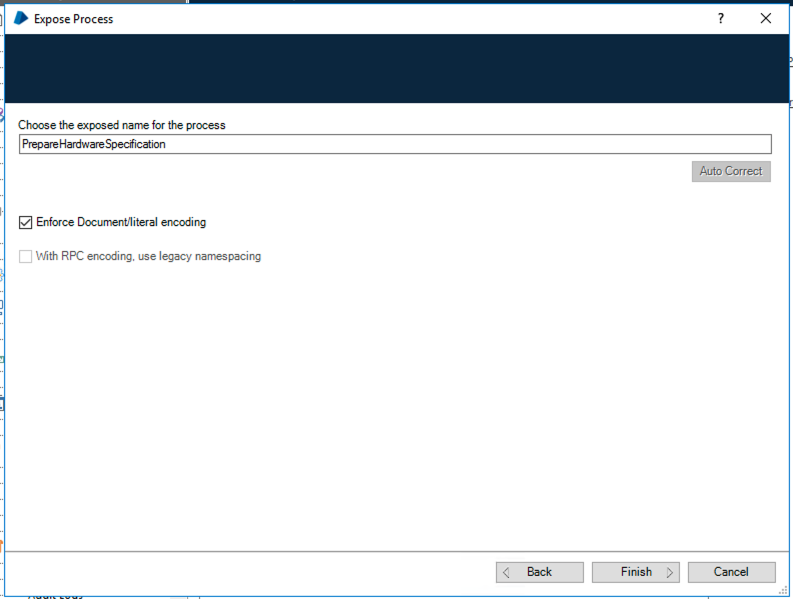
Expose processes via Web Services API. Use literal encoding [4].
-
Configure firewalls to allow access to the host and port where Blue Prism is running, which is by default
8181;-
If running on Azure, also configure the inbound and outbound network configuration to allow external access to Blue Prism machine;
-
5. RHPAM
RHPAM is Java based, and can run on several operating system that supports Java like Windows and Linux [https://access.redhat.com/articles/3405381]. It can either be provisioned on premise or within a Kubernetes-based platform like OpenShift.
When invoking Digital Workforce within RHPAM processes, communication happens via HTTP SOAP [1]. So in order to invoke Blue Prism WebService, it is possible either use the default Web Service Task which comes out-of-the-box within RHPAM, or, create a custom task to represent this invocation. In this guide, we will show how to use Blue Prism Task, a custom task to accomplish this goal [2].
5.1. Configuring Business Central
5.1.1. Installing Blue Prism Task
In order to use a custom task, you first need to make it available. Here’s how you can install the Blue Prism Task within the RHPAM authoring environment (Business Central):
-
Login to Business Central, go to the general settings by selecting the gear icon on the top-right corner menu.
-
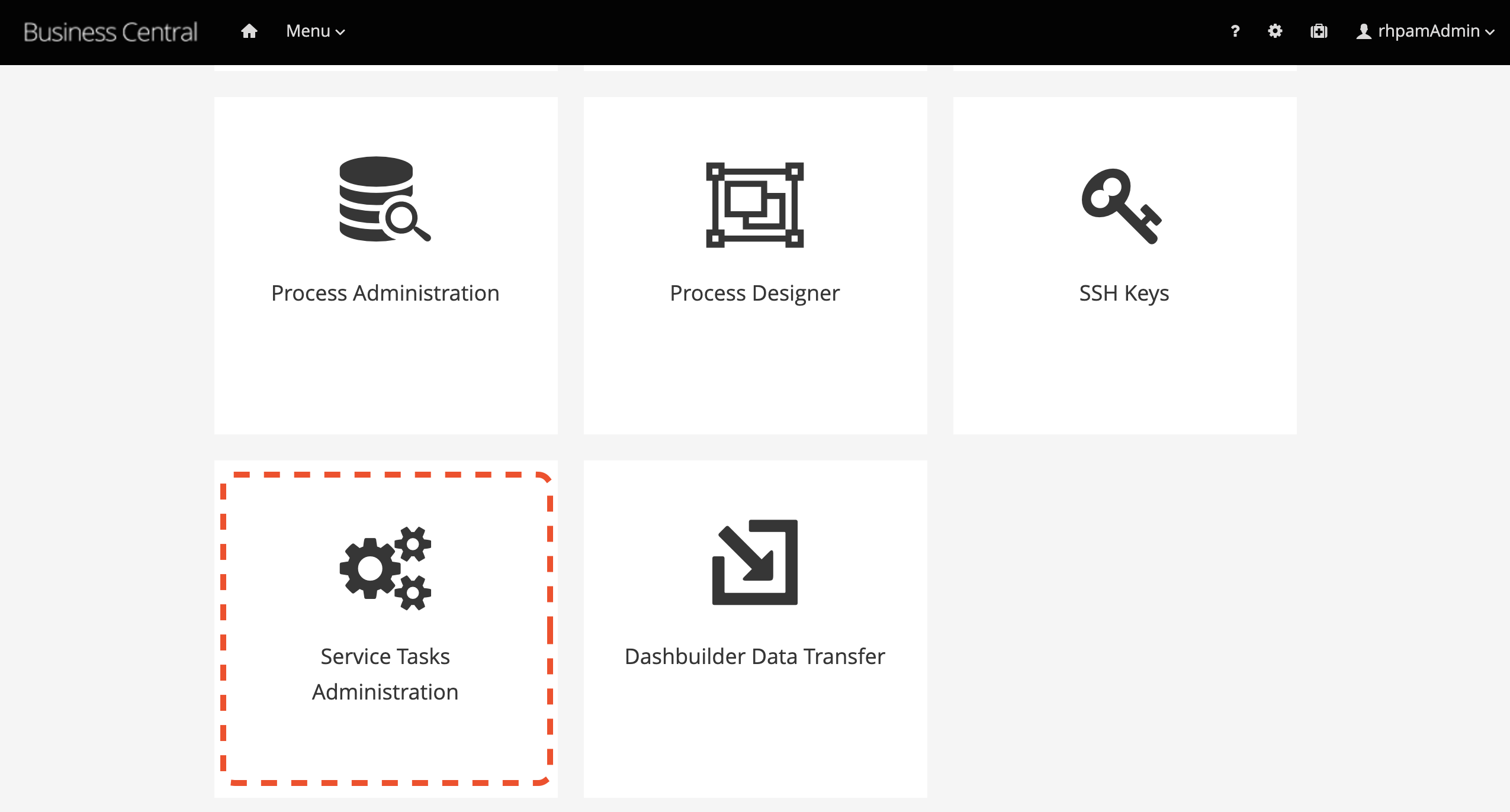
Within the configuration page, select the Service Tasks Administration option.
-
Upload the jar package that contains the Blue Prism Task.
-
Click on the
Add Service Taskbutton -
Provide the jar contaning the Blue Prism Task, in this case, the file
blueprism-wih-7.23.0.Final.jar.
-
The Blue Prism Service Task should now be available within the authoring environment. To use the task in the process designer, it is necessary to enable and configure it at the project level.
5.1.2. Adding Blue Prism Task to a Business Project
Follow these steps to enable the Blue Prism task in a RHPAM project:
-
In Business Central, go to the projects view, select a space, and open the project settings.
-
Select the
settingstab, and next,Deployments. Locate and select theWork Item Handlersmenu. -
Click on
Add Work Item Handler.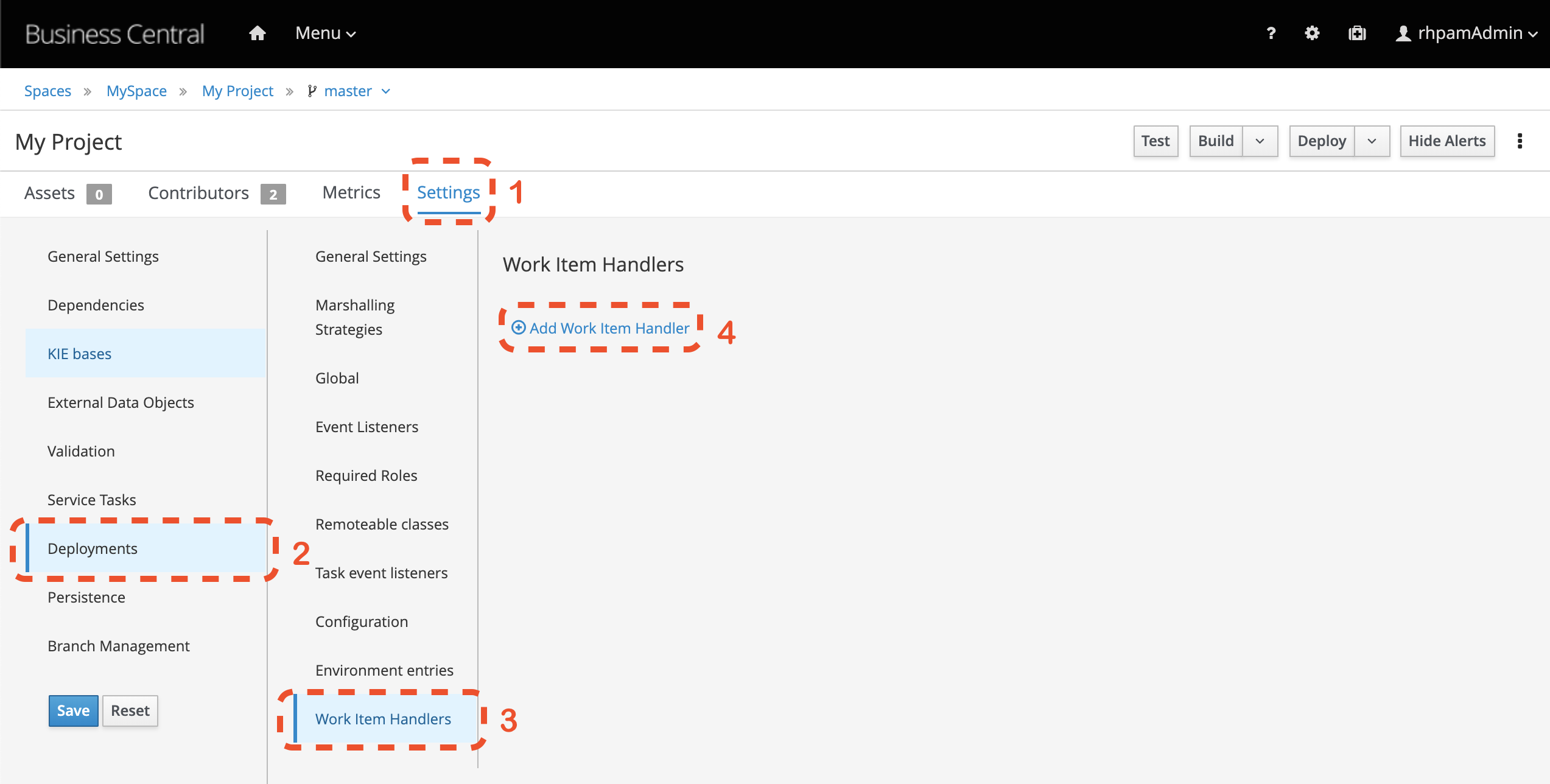
-
-
Input the task (Work Item Handler) configuration. See this example:
-
Name:
Blue PrismWS; -
Value:
-
new com.redhat.demo.Blue PrismWSWorkItemHandler(ksession,classLoader,5000,"user","password")On the above task configuration notice that: 5000 is the request timeout in miliseconds; You have to replace the values user and `password`with valid credentials for the blueprims webservices you are connecting to.
-
Identify or create the package in which the processes will be stored. You can either install the task to be visible to all processes (adding it to the global folder of the project) or just to a specific group of processes. In this guide, we will configure the task for a group of processes under a specific package.
-
Click on
importbutton and choose the package you defined on step 4.-
Import the
bp-icon.png[#TODO add link] and theBlue PrismWS.wid[#TODO add link] files to this package. -
See an example below where the processes would be stored in a package named
custom:
-

5.1.3. Using the Blue Prism Task within a Process
You can now use a Blue Prism task to invoke Digital Workers via the Blue Prism SOAP Web Services.

This custom Blue Prism task is an extension of the RHPAM WebService Task. More information about it can be found github of the Blue Prism Task source code.
Once you open the task properties Data Assignments, it should display the following configurations by default:
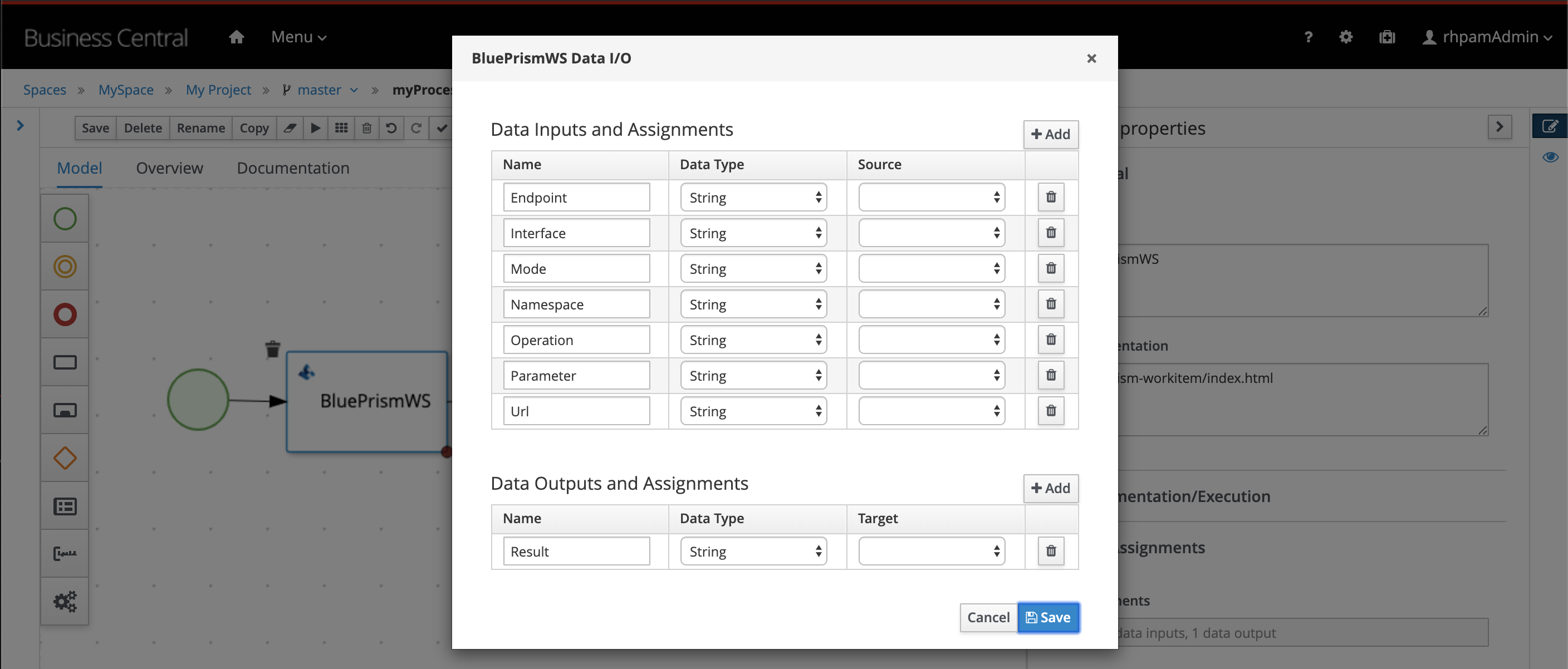
You will find details about each configuration below. Let’s consider a task which triggers a SOAP WebService like PrepareHardwareSpecification.wsdl.
-
Data Inputs and Assignments
-
Namespace: Namespace of Blue Prism SOAP Service. Example:
urn:blueprism:webservice:preparehardwarespecification -
Interface: Interface of Blue Prism SOAP Service. Example:
PrepareHardwareSpecificationService -
Mode: Can be
SYNCorASYNC. -
Operation: Blue Prism SOAP Service operation to invoke. Example:
PrepareHardwareSpecification -
Url: Accessible URL where Blue Prism Service is available. Example: http://myblueprism:8181/ws/PrepareHardwareSpecification?wsdl
-
Parameter: The process variable that will be sent as an input parameter. The
Data Typeshould be set according to the process variable class.
-
-
Data Outputs and Assignments
-
Result : process variable where the engine will store the result once it is received in the response. The
Data Typeshould be set according to the process variable class.
-
Sending and receiving data
When exchanging data via HTTP with a SOAP Web Service, services can send/receive:
-
simple types i.e.,
StringandInteger, or -
complex types i.e., POJOs like Person or Order.
Considering the scenario of consuming Blue Prism endpoints, we should use a top-down approach for the consumer development. In other words, we should automatically generate the Java classes that adhere to the existing XML Schema and WSDL.
RHPAM runs on top of JBoss EAP. EAP provides a script named wsconsume.sh[4] which is based on Apache CXF. This script is a facilitator that, based on JAX-WS, generates the required classes to communicate with an existing WSDL.
If you intend to exchange data with objects that holds more than one attribute, you will need to generate the wrapper classes. If this is the case, this is how to generate the objects using the wsconsume.sh script:
-
Once the Blue Prism Web Service is available, open the command line and invoke
wsconsume.shto generate the classes.
$JBOSS_EAP/bin/wsconsume.sh [options] <wsdl-url>See this example:
$JBOSS_HOME/bin/wsconsume.sh -kn http://bpdevelopment:8181/ws/PrepareHardwareSpecification?wsdl-
Where
$JBOSS_HOMEis the directory where JBoss is installed; -
The parameters are:
-
-k: same as
--keepKeep/Generate Java source; -
-n: same as
--nocompileDo not compile generated sources;
-
-
URL: should be replaced with the wsdl url, for example http://bpdevelopment:8181/ws/ShipOrder?wsdl.
-
A folder with the package structure and respective classes should be generated in
$JBOSS_HOME/bin/output/. -
Import the generated classes related to the WSDL into your RHPAM business project (Or package it within a
jarand reference it as a dependency). These are the required classes for the data exchange:-
ObjectFactory.java -
package-info.java -
POJOResponse.Java -
POJO.java
-
-
Once imported to the project, add the respective input and output classes to the task variables
ParameterandResult: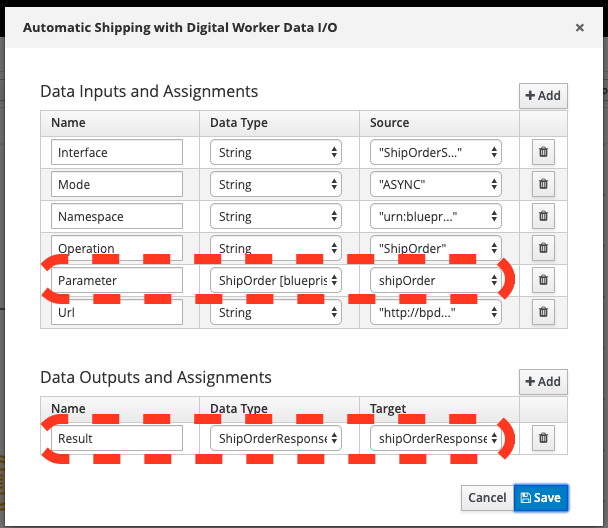
-
Make sure to select the class type you just generated on the
Data Typecombo box. -
On the
sourcecolumn:-
for the
inputselect the process variable where the input value can be obtained to be sent to Blue Prism; -
for the
output, select the process variable where the response object received from Blue Prism should be stored;
-
-
Summary
Here are the topics you should remember when creating Red Hat PAM processes that consumes Blue Prism services:
-
Expose Blue Prism processes or objects via WebService;
-
To use CXF based scripts (
wsconsume.sh), Blue Prism SOAP WebService should be exposed withliteral encoding[3]; -
If running on a different machine, Blue Prism should be externally accessible (Firewalls should be configured).
-
The project within Red Hat PAM needs configuration for the Blue Prism Task (service task that invokes SOAP Web Services).
-
If using complex java objects, the classes should be generated based on the WSDL. It should be added to the business project or packaged in a
jarand configured as a maven dependency. EAP provides a facilitator to generate the classes, thewsconsume.shscript.
General Notes:
[1] Blue Prism Web Services are currently exposed only via SOAP.
[2] Red Hat supports for RHPAM the creation and usage of custom tasks, although the code within the custom task is not supported. Therefore, the task provided on this guide is for demonstration purposes only and is not officially supported.
[3] Due to a known behavior on the designer, this guide instructs to user to manually copy the icon task. This will be improved on next releases. More details can be found in https://issues.redhat.com/browse/RHPAM-2418.
[4] CXF does not support generating classes for `RPC/encoded WSDL. To automatically generate classes using CXF, Blue Prism Web Service must be exposed with literal encoding, like represented on the image below: